
What is Flexi Archiver? #
The Flexi Archiver plugin is a powerful tool that helps WooCommerce store owners automatically or manually archive old orders and their related data. Archiving old orders can significantly reduce database load and improve site performance. Archived orders are securely stored in the cloud and can be accessed whenever needed.
For example, if your store processes thousands of orders over time, keeping all of them active can slow down your site. With Flexi Archiver, you can set a schedule to archive orders that are, for instance, over 1 year old, helping maintain optimal speed and performance.
Flexi Archiver consists of two core components: The SaaS App & the WordPress plugin named “Flexi Archiver for WooCommerce“. Let’s see how to activate both the plugin and connect to the SaaS App.
Activating the plugin #
- After purchasing the plugin, you must’ve received an email containing the download link to the plugin file.
- Download the zip file of the plugin and go to WordPress Admin > Plugins > Add New Plugin to upload.
- Click Upload Plugin at the top.
- Click Choose File and select the .zip file you downloaded earlier. Click Install Now.
- Once the plugin is uploaded, you can activate it.
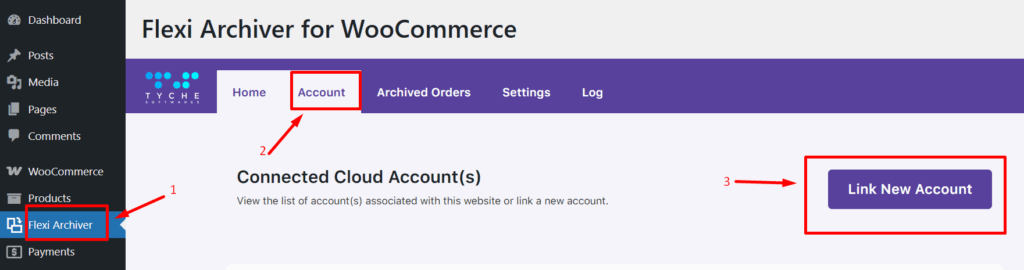
- After activation, a new Flexi Archiver menu will appear in the admin sidebar.
- Navigate to the Account tab in the plugin dashboard to connect your WooCommerce store to the Flexi Archiver Cloud.
Connecting WooCommerce Store to the SaaS Cloud #
You can connect your store to the cloud using either methods below:
If you started from the Flexi Archiver SaaS platform: #
- You’ll receive a welcome email containing:
- A link to confirm your email and activate your account.
- A link to download the Flexi Archiver for WooCommerce plugin.
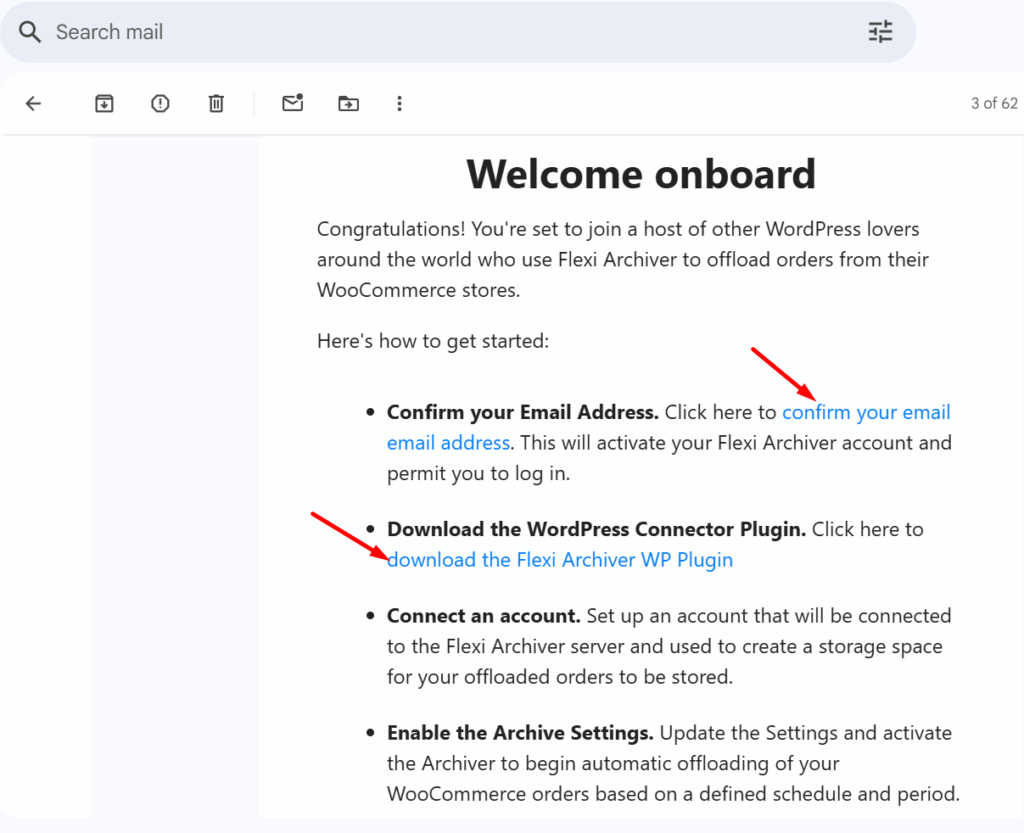
- Confirm your email by clicking the link provided.
- Download the plugin from the same email and install it on your WordPress site.
- Once the plugin is installed and activated, go to the dashboard of Flexi Archiver > Account in your WordPress admin and click Link New account.
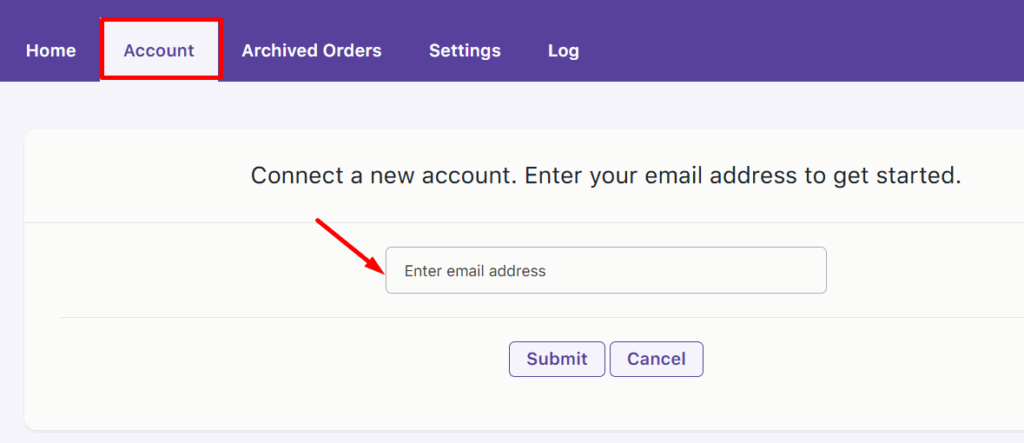
- Enter your email address to be linked to the cloud account and click Submit.
- Enter the OTP sent to your email and click Link Account.
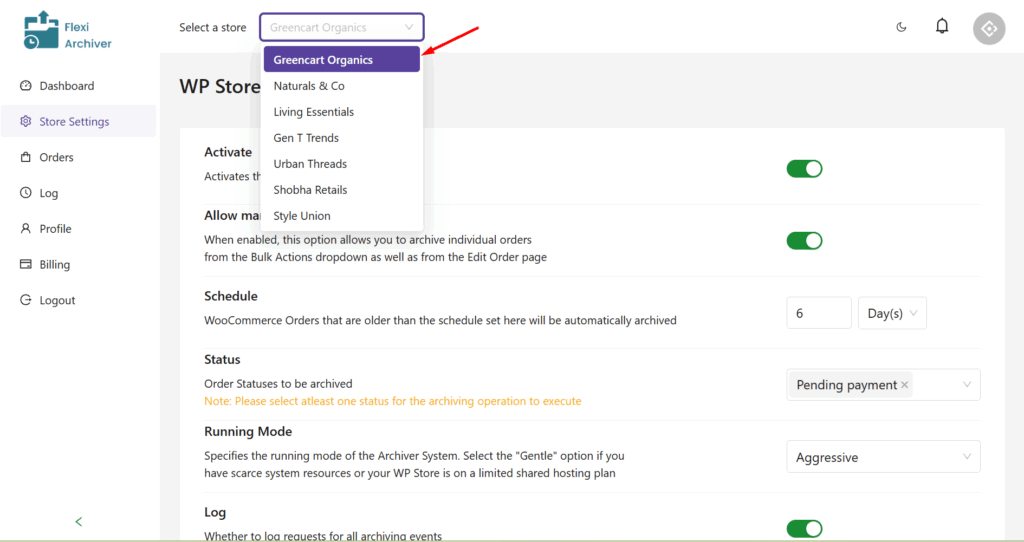
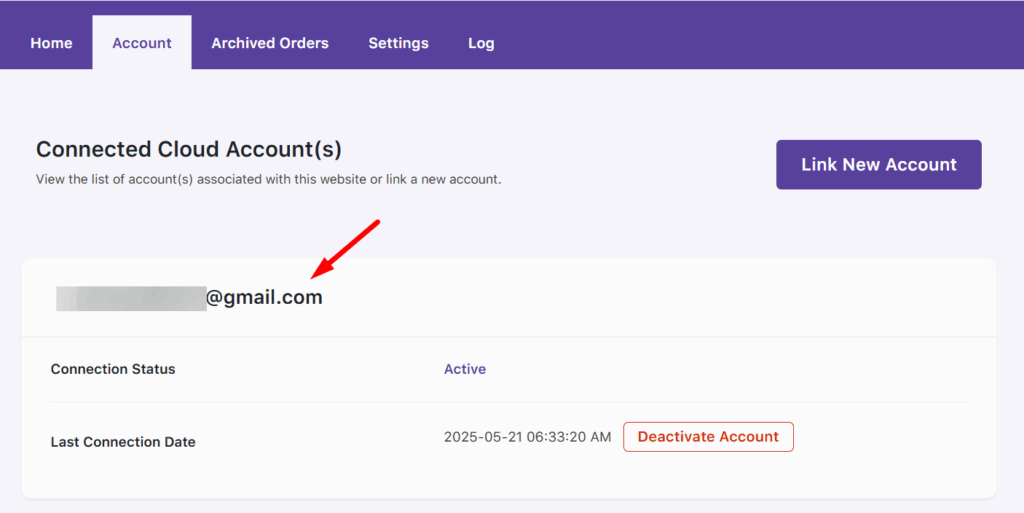
- Your store will now appear under Connected Websites in the SaaS dashboard.
If you started from the Flexi Archiver for WooCommerce plugin: #
- In WordPress admin, go to Flexi Archiver > Account tab.
- Click the Link New Account and enter your email.
- Enter your email address to be linked to the cloud account and click Submit.
- Enter the OTP sent to your email and click Link Account.
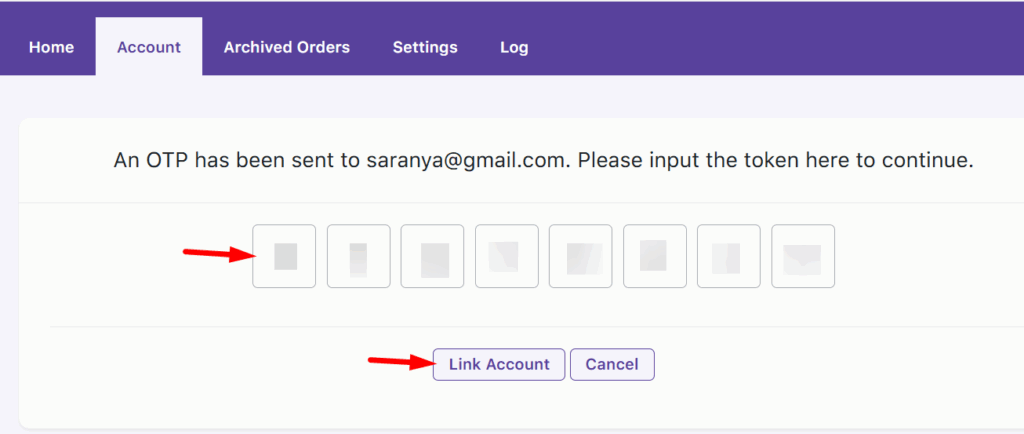
- Your store is now connected to the Flexi Archiver Cloud App.
Key features at a Glance #
- Cloud archiving
Automatically move older WooCommerce orders to secure cloud storage to keep your site fast and organized.
- Archived Orders Management
Archive, view, and manage your orders directly from the WooCommerce dashboard.
- Multiple Site Support
Connect and archive orders from multiple independent WooCommerce stores through a single SaaS dashboard, each store managed individually. - SaaS App Dashboard
View and manage all archived orders from a centralized cloud-based dashboard.


